
Inbox and tasks
The inbox
Section titled “The inbox”Workflow in the workspace section is your task inbox: the workflow steps currently assigned to you, either directly or through a group you belong to.
The inbox is paginated, so a long backlog does not turn into a slow page. Your dashboard also surfaces pending tasks, which is usually where you notice them first.
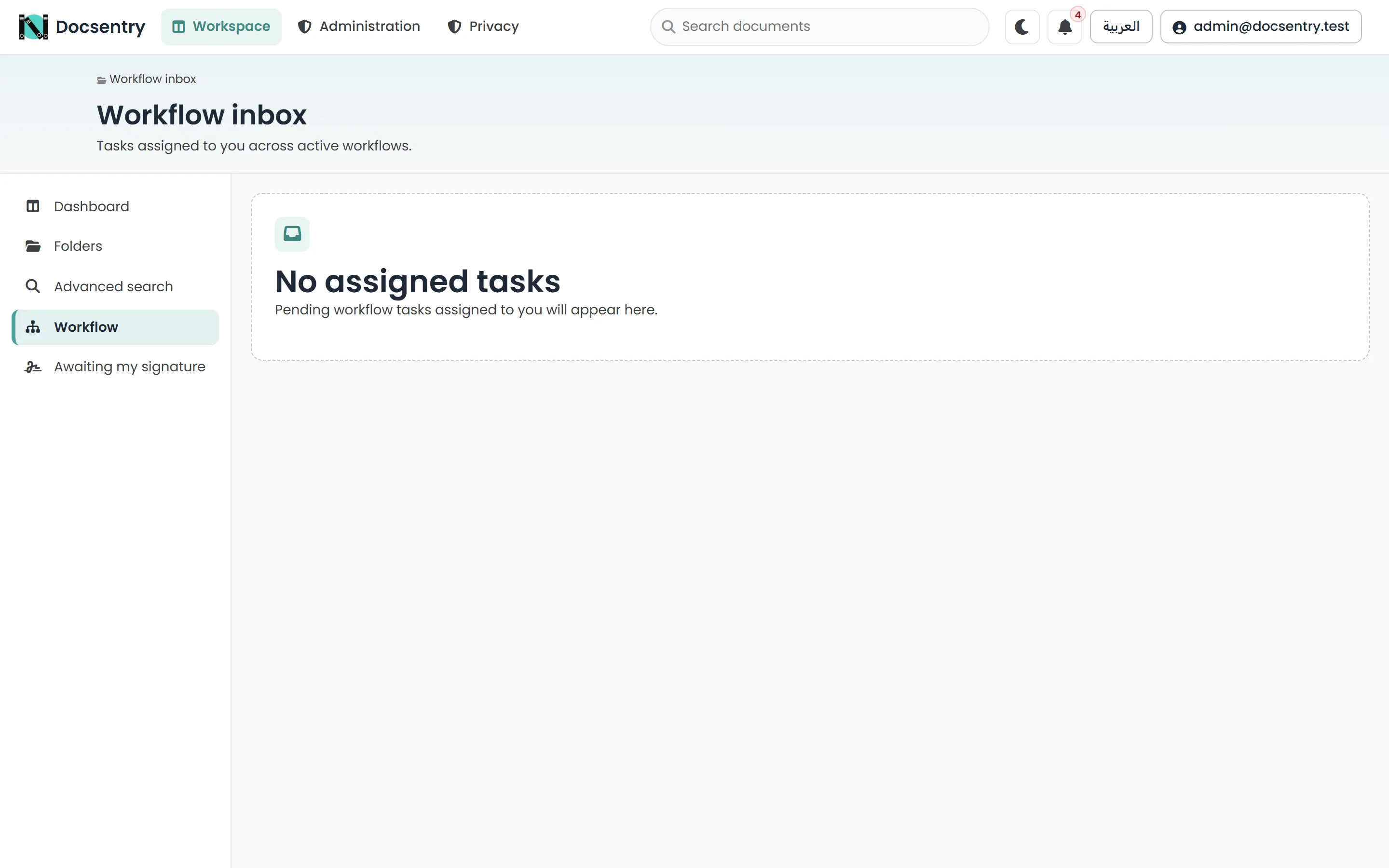
The workflow inbox lists the steps currently assigned to you.
Acting on a task
Section titled “Acting on a task”Opening a task shows the document, the step you are on, the actions the definition permits at this point, and the history so far.
Take an action - approve, reject, acknowledge, review, or publish, depending on what the step allows - and add a comment. The comment is worth writing: it is what makes the history readable later, and a rejection without a reason usually generates a conversation that a sentence would have avoided.
Acting completes your step instance and the workflow follows the transition for that outcome. If it reaches a terminal step, the instance completes and, where the workflow is bound to a folder, the document’s status is updated to match.
Where a step is assigned to several people, the first to act completes it and it disappears from everyone else’s inbox.
Delegating
Section titled “Delegating”Delegation hands a task to someone else. Use it when the task is legitimately theirs - the right reviewer, or cover while you are away.
Delegation is recorded in the history. The task moves, and the record shows it moved and who moved it. It is not a way to make a task quietly disappear.
Escalation
Section titled “Escalation”Tasks that sit unactioned past the configured escalation window are escalated automatically by a background job. The step instance moves to Escalated status and is raised for attention.
The window defaults to two days and is configurable, along with how often the job runs, under
BackgroundJobs:WorkflowEscalation. See Background jobs.
Escalation is a signal, not a resolution. The task still needs someone to act on it; escalation only ensures it stops being invisible.
When someone leaves
Section titled “When someone leaves”Tasks assigned to a departed user would otherwise sit in an inbox nobody opens. A reconciliation job detects this and reassigns the affected tasks - to a replacement, back to a shared pool, or escalated - so work does not vanish with an account.
This is the failure mode most likely to bite a long-running deployment, and it is worth confirming the job is enabled before you need it.
History
Section titled “History”Every instance carries an append-only history: each action, who took it, when, and their comment.
The history is the audit answer to “why is this document approved”. It cannot be edited or deleted through the application - the running application’s database principal has append-only access to the workflow history table, so rewriting it is not merely discouraged but not permitted.
Reassignment
Section titled “Reassignment”A user with sufficient permission can reassign a step instance directly, without delegating from within the task. Use this when the original assignment was simply wrong.
Permissions
Section titled “Permissions”| Action | Requires |
|---|---|
| See a task in your inbox | Being an assignee, directly or via a group |
| Act on a task | Being an assignee |
| Start a workflow on a document | ManageWorkflow on the document |
| Reassign someone else’s step | ManageWorkflow on the document |
| View history | Preview on the document |
Related
Section titled “Related”- Concepts - definitions, instances, and statuses.
- Authoring definitions - changing what the steps are.
- Collaboration - comments and notifications alongside workflow.