
Authoring definitions
Workflow definitions are authored under Workflow definitions in the administration section. Authoring requires administrative access.
Creating a definition
Section titled “Creating a definition”Create the definition with a name and description. It starts in Draft status, which means it exists but cannot be started on documents. Build it out before activating it.
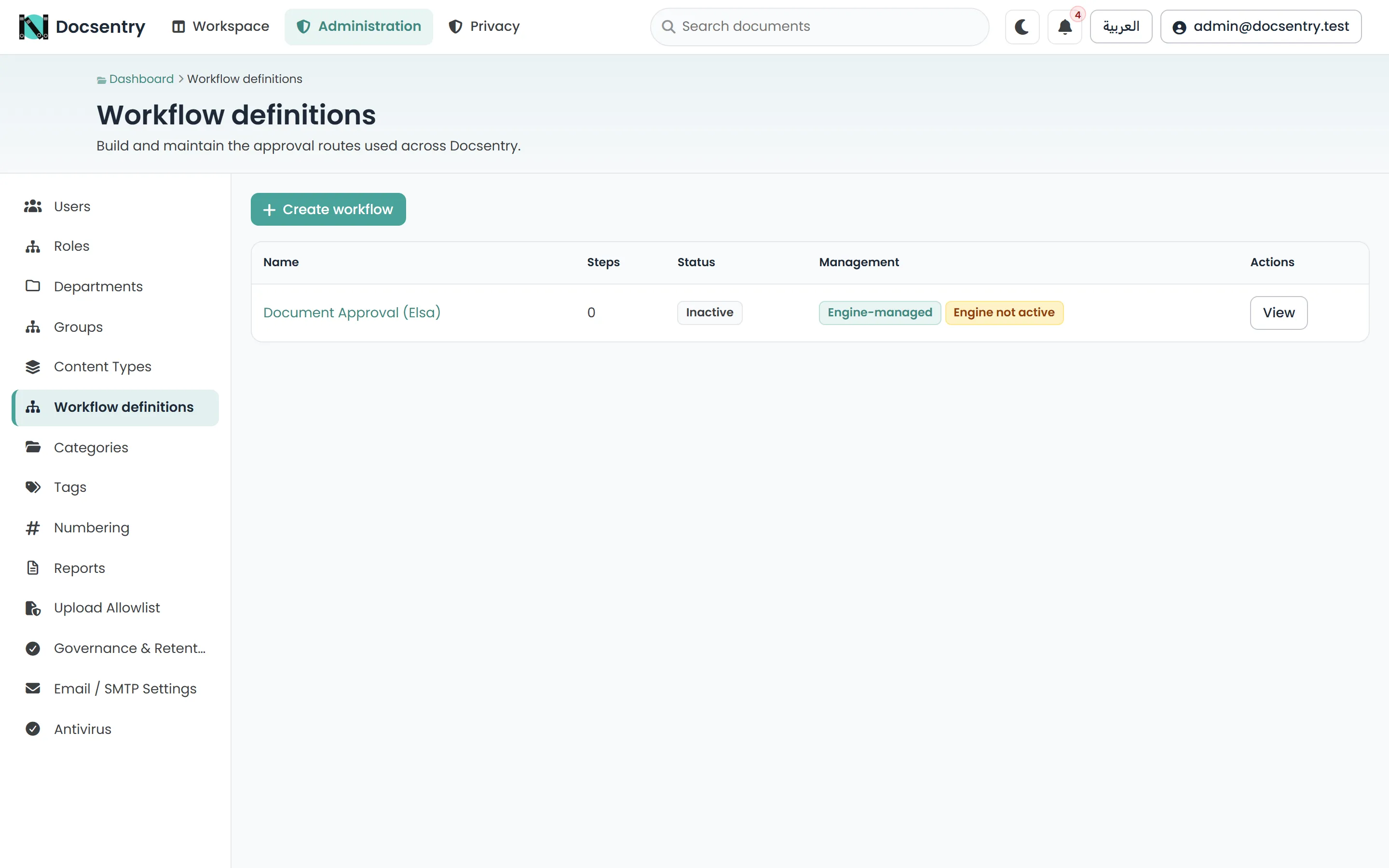
Workflow definitions are listed with their status. Only active definitions can be started or bound to a folder.
Adding steps
Section titled “Adding steps”Each step is a point where someone must act. For each step you set:
| Property | Purpose |
|---|---|
| Name | What appears in the inbox and the history. Make it a verb someone recognises - “Legal review”, not “Step 2”. |
| Action | Which action the step expects: approve, reject, acknowledge, review, or publish. |
| Assignees | Who may act on it. |
| Order | Where the step sits in the sequence. |
Assignees
Section titled “Assignees”The assignee picker accepts individual users and groups. A step assigned to a group appears in every member’s inbox, and the first to act completes it.
Adding transitions
Section titled “Adding transitions”A transition connects one step to another and says which outcome takes that path. Approval typically advances; rejection typically ends the instance.
Build the rejection paths as deliberately as the approval path. A definition where only approval is wired is a definition where a rejection leaves the instance stuck.
The last step in a successful path is terminal - reaching it completes the instance, and where the definition is bound to a folder, the document’s status is updated accordingly.
Activating
Section titled “Activating”Move the definition from Draft to Active to make it available. Only active definitions can be started on a document or bound to a folder.
Check before activating:
- every step has at least one assignee
- every step has a transition out, or is deliberately terminal
- rejection is wired, not just approval
- step names read clearly in an inbox
Deactivating and reactivating
Section titled “Deactivating and reactivating”Deactivating archives a definition. Running instances continue to completion; no new instances start. Reactivating makes it available again.
Definitions are never deleted. A completed instance from three years ago must still be interpretable, which requires the definition it ran against to still exist.
Editing a live definition
Section titled “Editing a live definition”Editing a definition that has running instances is possible but wants care. Instances in flight were started against the shape the definition had at the time, and changing steps or transitions underneath them can produce results that are hard to explain afterwards.
For anything beyond a cosmetic change - renaming a step, adding an assignee - prefer creating a new definition and archiving the old one. Existing instances finish under the definition they started with, and new work uses the new shape. The history stays interpretable.
Binding to a folder
Section titled “Binding to a folder”An active definition can be bound to a folder as its approver workflow, from the folder’s settings. Documents added to that folder then start the workflow automatically.
This is the mechanism that makes a process reliable. A workflow that depends on someone remembering to start it manually is a workflow that gets skipped under time pressure.
See Concepts for how folder binding drives document status.
A worked shape
Section titled “A worked shape”A two-stage contract approval:
| Step | Action | Assignees | On approve | On reject |
|---|---|---|---|---|
| Legal review | Review | Legal department | Go to Director approval | End - rejected |
| Director approval | Approve | Directors role | Complete | End - rejected |
Bound to /Legal/Contracts, every document uploaded there is reviewed by Legal, then approved by
a director, and ends up with an Approved status and a history showing exactly who signed off.
Related
Section titled “Related”- Concepts - the model behind these screens.
- Inbox and tasks - what your definition looks like to the people working it.
- Departments and org units - the groups you assign steps to.