
Versions and check-out
Versions
Section titled “Versions”Every document keeps its full revision history. Uploading replacement content creates a new version rather than replacing the old one, so the document’s identity, permissions, comments, workflow history, and audit trail all continue across the change.
From a document’s Versions screen you can:
- see every version with its number, author, and timestamp
- download any specific version, not just the current one
- restore an older version
Restoring is not a rollback. Restoring version 3 creates a new version whose content is version 3’s content. Version 4 still exists and is still downloadable. Nothing is destroyed, and the history shows what happened rather than pretending it did not.
This is the right behaviour for a system of record, but it does mean history only grows. Storage cost is mitigated by content-addressing - if a restored version has byte-identical content to one already stored, no new bytes are written. See Folders and documents.
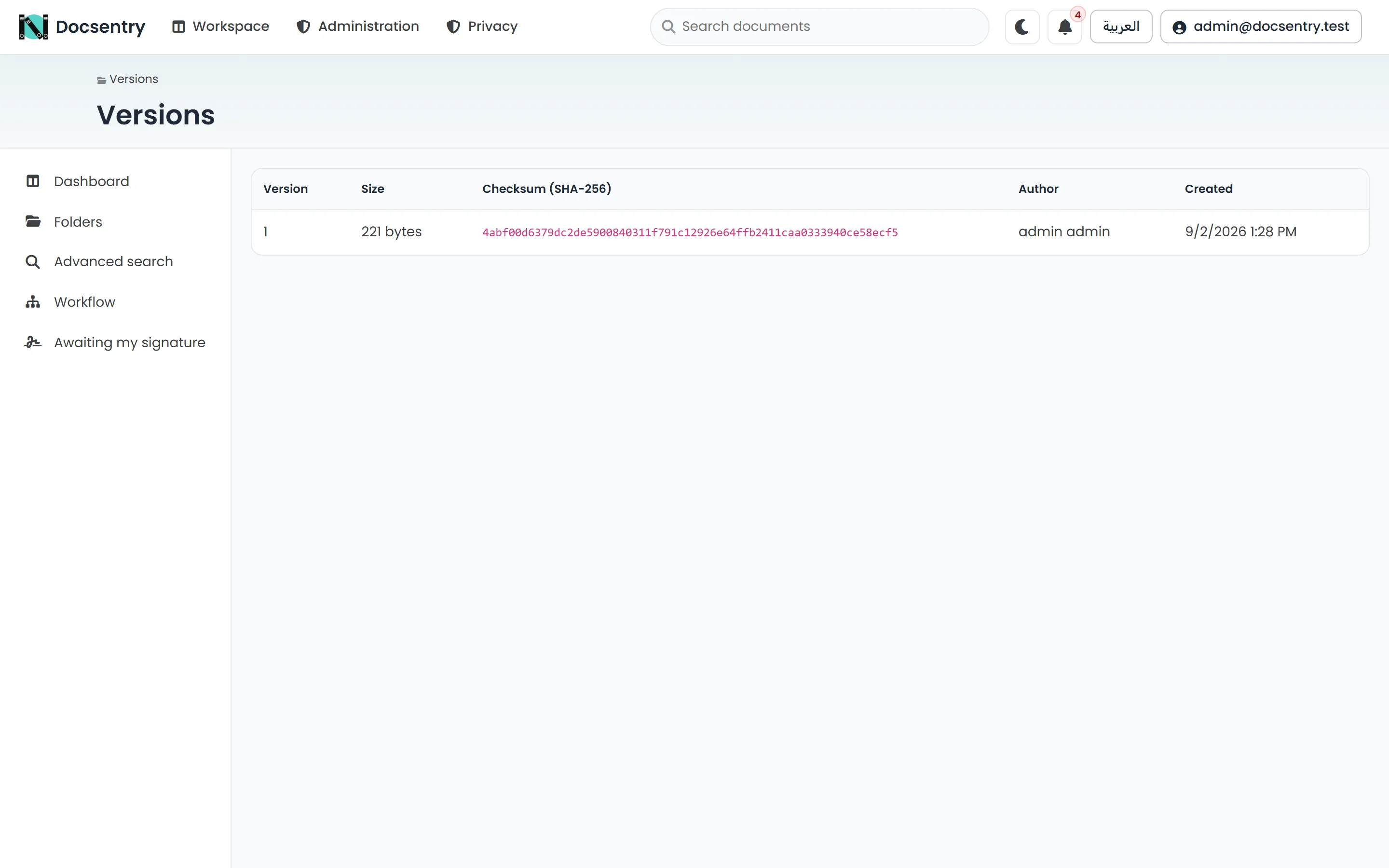
Version history. Any version can be downloaded, and restoring one creates a new version rather than discarding later work.
Check-out and check-in
Section titled “Check-out and check-in”Versioning records what happened. Check-out prevents the thing you did not want to happen: two people editing the same document and one silently losing their work.
Check out takes an exclusive lock on the document. While it is held:
- other users see the document is checked out and by whom
- other users cannot upload a new version
- the lock holder can upload a new version, which becomes the check-in
Check in uploads the new content, creates the next version, and releases the lock.
Discard check-out releases the lock without creating a version. Use this when you checked out a document and did not, in the end, change anything.
Attempting an operation that conflicts with an active lock is rejected with a clear resource-locked error rather than being queued or silently ignored.
Your dashboard lists the documents you currently have checked out, which is the fastest way to notice you are still holding one.
Which permission does what
Section titled “Which permission does what”| Action | Requires |
|---|---|
| View a version list | Preview |
| Download a version | Download |
| Check out, check in, upload a new version | EditContent |
| Restore an older version | EditContent |
See Permission model.
Versions and the rest of the system
Section titled “Versions and the rest of the system”- Previews and text extraction are per-version. A newly checked-in version gets its own preview and its own extracted text, and search reflects the new content once those jobs have run.
- Antivirus scanning applies to each new version. A version that has not been cleared is not served.
- Signatures are bound to the specific version that was signed, which is what makes after-the-fact verification meaningful. See Signatures.
- Audit records who created, restored, checked out, and checked in each version.
A practical workflow
Section titled “A practical workflow”- Check out the document, so nobody else starts editing it.
- Download the current version and make your changes locally.
- Check in, uploading the changed file. That creates the next version and releases the lock.
- If you decide not to change anything, discard the check-out instead.
For a small correction where no one else is likely to be working on the file, uploading a new version without checking out first is acceptable - the version history still records it. The lock is there for the cases where coordination actually matters.