
Folders and documents
Folders
Section titled “Folders”Folders form a tree. A folder holds documents and other folders, carries its own access-control entries, and can define policy that applies to everything inside it - an upload policy, a default content type, an approver workflow, or whether signing is allowed.
Depth is capped by Folders:MaxDepth, which defaults to 10. The limit exists to keep tree
operations bounded; it is not a storage constraint.
The Folders screen is the explorer: the tree on one side, the contents of the selected folder on the other, as cards or rows. From here you upload, create subfolders, and reach a folder’s settings and access screens.
Folders can be marked as favourites, which pins them for quick access. Moving a folder moves its whole subtree and re-derives inherited permissions for everything beneath it.
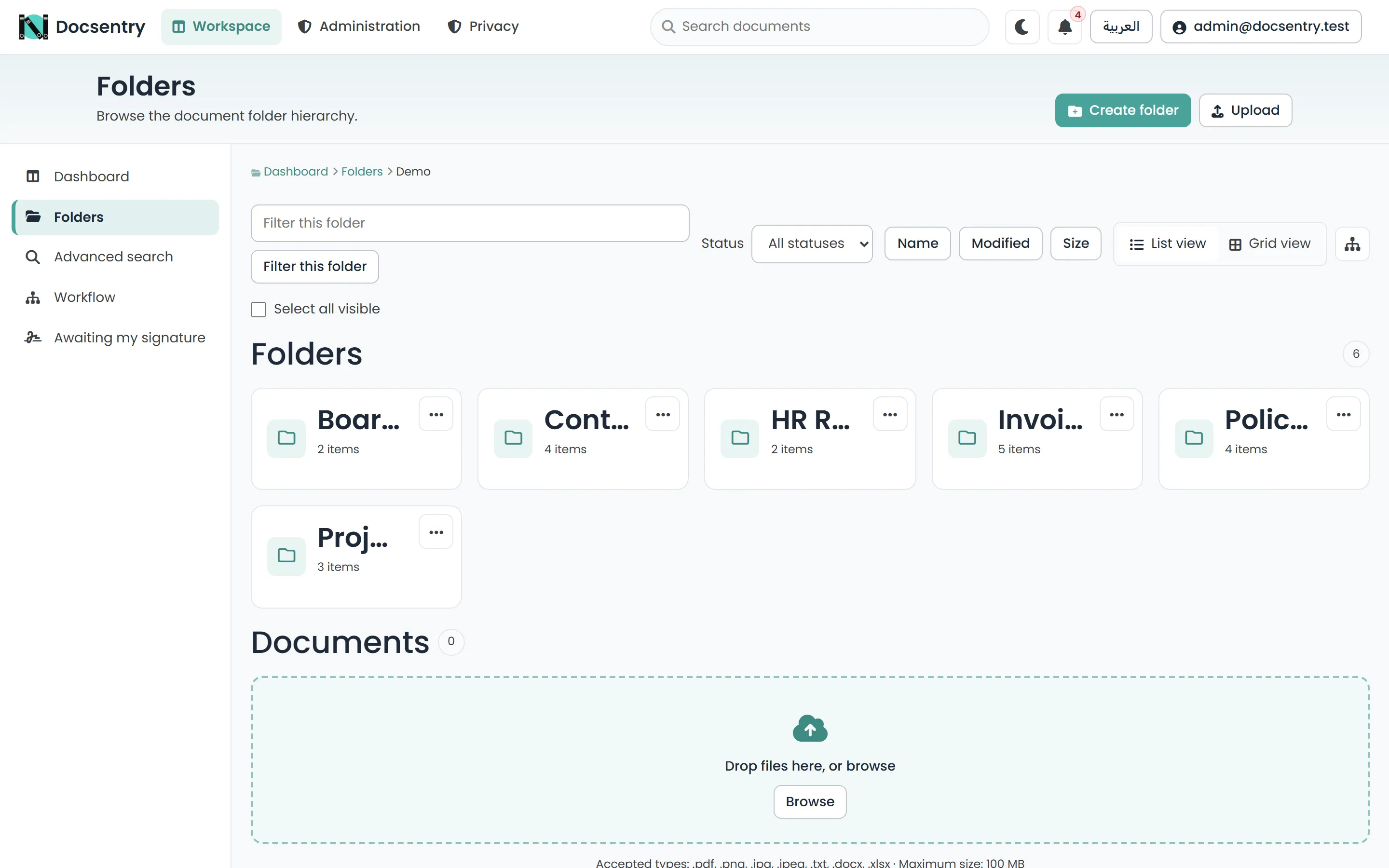
The folder explorer. The tree rail on the left, the selected folder’s contents on the right.
Documents
Section titled “Documents”A document is the durable identity of a piece of content. It has a name, a location, metadata, a classification, and a history of versions. What people usually mean by “the file” is the document’s current version.
That distinction matters: replacing a file does not create a new document. It creates a new version of the same document, so links, comments, permissions, workflow history, and audit entries all survive the change. See Versions and check-out.
Each document carries a status:
| Status | Meaning |
|---|---|
| Draft | Not yet in general circulation. |
| Active | In normal use. |
| InReview | Currently the subject of a review or approval workflow. |
| Approved | Passed an approval workflow. |
| Archived | Retained but no longer current. |
| Retired | Withdrawn from use. |
Where a folder is bound to an approver workflow, the workflow’s outcome drives the document’s status rather than someone setting it by hand.
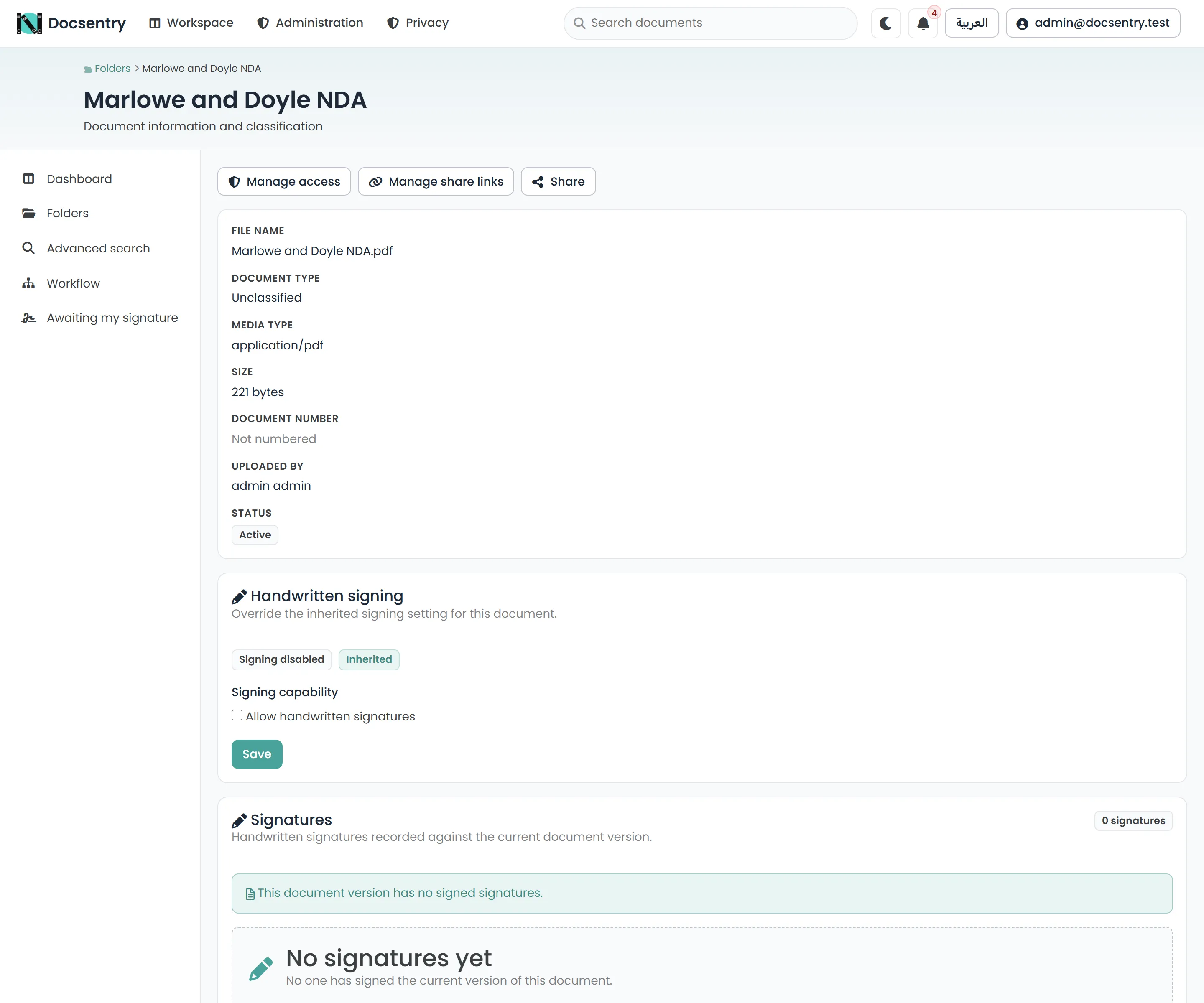
A document page: file information, classification, signing capability, and recorded signatures.
How files are stored
Section titled “How files are stored”Docsentry stores every file encrypted and deduplicated. When a file is uploaded, it is encrypted with its own data key and stored under a path derived from a keyed content address - a value computed from the content with an installation secret, so identical content maps to the same place while the path reveals nothing about what the file contains.
The consequence is deduplication. Upload the same file to ten folders and there is one copy of the bytes on disk, referenced ten times. Every reference is a separate document with its own name, metadata, permissions, and history - the sharing is purely at the byte level and is invisible in the interface.
This shapes two behaviours worth knowing about:
- Deleting a document does not immediately free disk space. The bytes are still referenced, or are waiting to be reclaimed. A background job removes stored files that no longer have any reference and are older than a minimum age. See Background jobs.
- Integrity can be verified. A background job compares stored files against their recorded hashes, detecting corruption or files that have gone missing underneath the application.
Previews, thumbnails, quarantined uploads and in-progress upload chunks are encrypted the same way. File names are kept in the database, not in the storage directory.
The store lives under Storage:RootPath, with separate subpaths for stored content, temporary
upload data, and quarantined content.
Deletion and the recycle bin
Section titled “Deletion and the recycle bin”Deleting a document is a soft delete: it leaves the folder listing and moves to the recycle bin, where it can be restored to its original location. Deleting a folder does the same for its contents.
The recycle bin is permission-trimmed - you see the deleted items you had access to, not everything the system has deleted.
Items leave the recycle bin in one of two ways: someone with the right permission permanently deletes them, or the retention cleanup job purges items past the configured retention period. See Governance and retention.
Permanent deletion removes the document record. The underlying bytes are reclaimed separately by the orphan-byte job, once nothing references them.
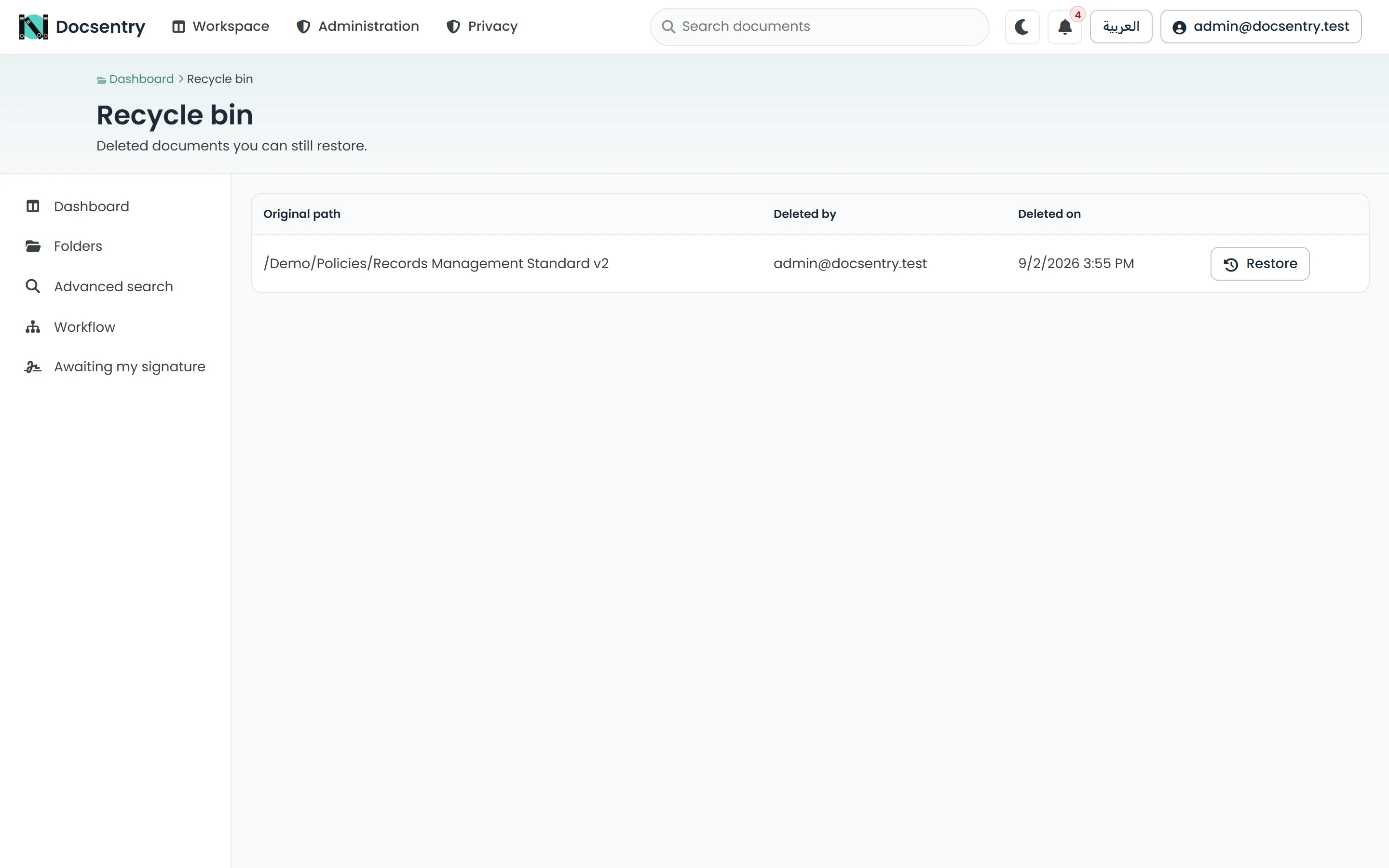
The recycle bin. Items can be restored to their original location until retention purges them.
Finding things
Section titled “Finding things”Folders are for structure; they are not the only way to find a document, and past a certain size they stop being the best way. Metadata, tags, categories, and search exist precisely so that a document has more than one route to it. See Search and Metadata and content types.
Related
Section titled “Related”- Versions and check-out - how content changes over time.
- Permission model - what the access-control entries on a folder do.
- Uploading - what happens between choosing a file and seeing it listed.
- Bulk operations - acting on many documents at once.