
Sharing and links
Docsentry supports two ways to give another person access: a secure share link or a direct access-control entry. Both methods apply to folders and documents, and neither lets you grant permissions that you do not hold yourself.
Create a secure share link
Section titled “Create a secure share link”Open a folder or document and select Share. The create-link form lets you choose:
| Setting | Available behavior |
|---|---|
| Access level | Viewer, Reader, Contributor, or Editor, limited to levels contained in your own effective permissions |
| Expiry | 1, 7, 30, or 90 days. Without a choice, the default share-link lifetime set under governance applies |
| Maximum uses | Optional positive limit; leave it empty for no use-count limit |
| Password | Optional password that the recipient must enter |
Creating a link requires Download permission on the target. The selected level can never exceed your current effective permission mask. If your permissions are reduced later, redemption clamps the link to the permissions you still hold; a link that no longer grants anything cannot be redeemed.
After creation, copy the displayed URL and deliver it to the intended recipient. The plaintext token appears only once. The link-management screen shows the access level, status, use count, expiry, creator, and whether password protection is enabled, but it cannot show the token again.
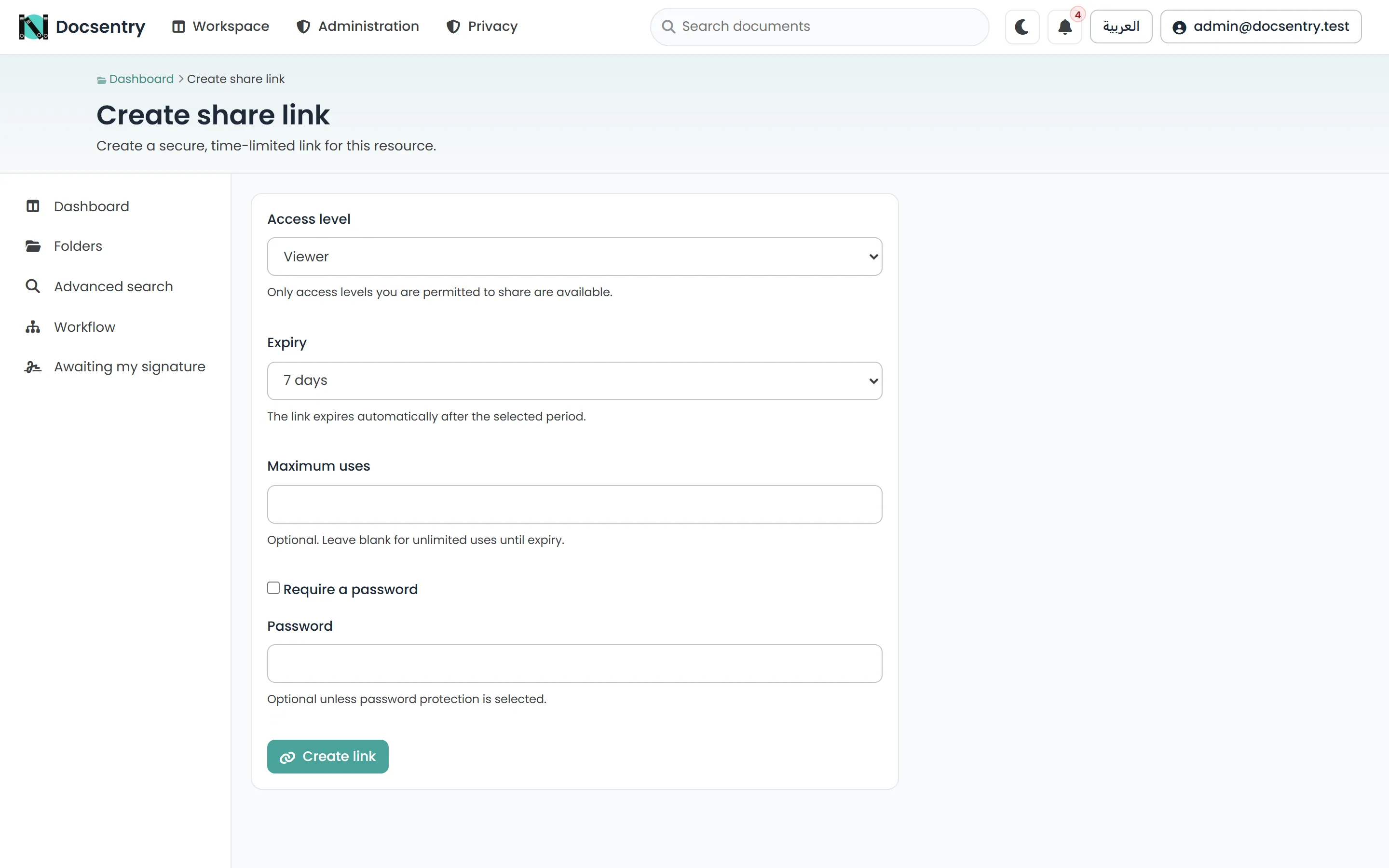
Creating a share link: access level, expiry, optional password and use limit.
What the recipient does
Section titled “What the recipient does”The recipient opens the URL and signs in to a Docsentry account. If the link is protected, they enter its password. Successful redemption records a grant for that account and shows the granted access level and resource type. Reusing an already-redeemed link refreshes that account’s recorded grant without consuming another use.
An invalid, expired, revoked, exhausted, or no-longer-effective token is reported as unavailable. A wrong password is reported separately and does not consume a use. The recipient returns to the dashboard after redemption and can reach the shared resource through their account’s effective access.
List and revoke links
Section titled “List and revoke links”Select Manage links after creating a link, or open the link list from the resource’s sharing controls. Status values include Active, Expired, Exhausted, and Revoked.
The creator can revoke their own link. Another user must have Manage permissions on the resource to revoke it. Revocation prevents future redemption; it does not erase audit history.
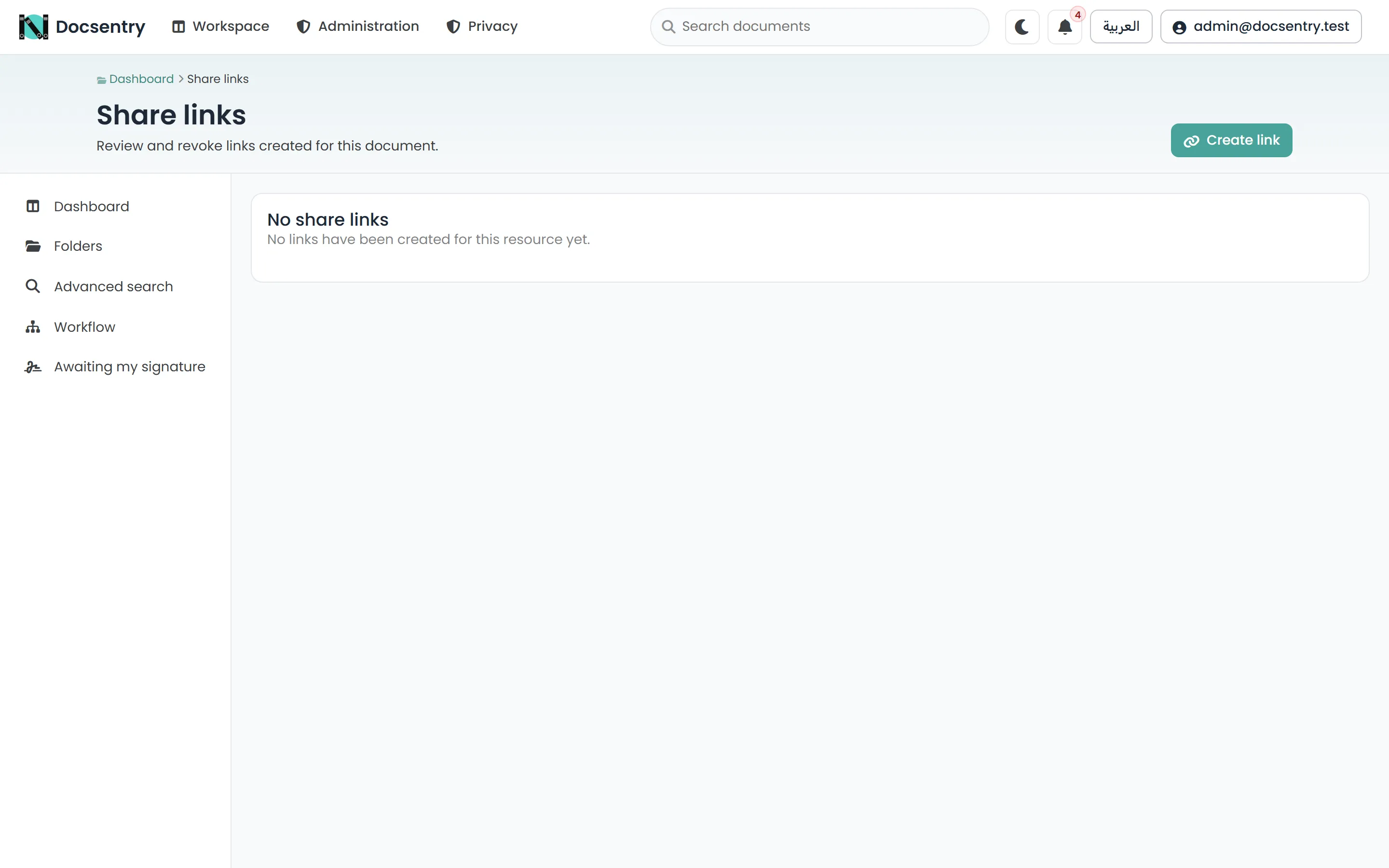
Existing links with their status. The token itself is shown once, at creation, and never again.
Grant direct access
Section titled “Grant direct access”Use the resource’s Access screen when access should be tied directly to an organizational subject rather than distributed as a URL. You can select a user, role, department, or organization unit, then apply a named access level or an advanced allow-and-deny combination. Folder access can inherit through the hierarchy; document access is evaluated with its folder context.
Direct access is the better choice for continuing team membership. A share link is useful for controlled, time-limited distribution to a known account. For details about inheritance, deny entries, and effective permissions, see the permission model.