
Uploading
Ways to upload
Section titled “Ways to upload”Drag and drop onto the folder explorer is the fastest route for a few files. Drop them onto the folder contents area and they upload into the folder you are viewing.
The upload page gives you the full form: file selection, content type, metadata fields, tags, and categories before the file lands. Use it when the classification matters and you would rather set it once than fix it afterwards.
Bulk upload takes many files in one action. Each becomes its own document.
A new version of an existing document is not an upload into a folder - it goes through the document’s own version flow. See Versions and check-out.
Uploading requires the Upload permission on the target folder.
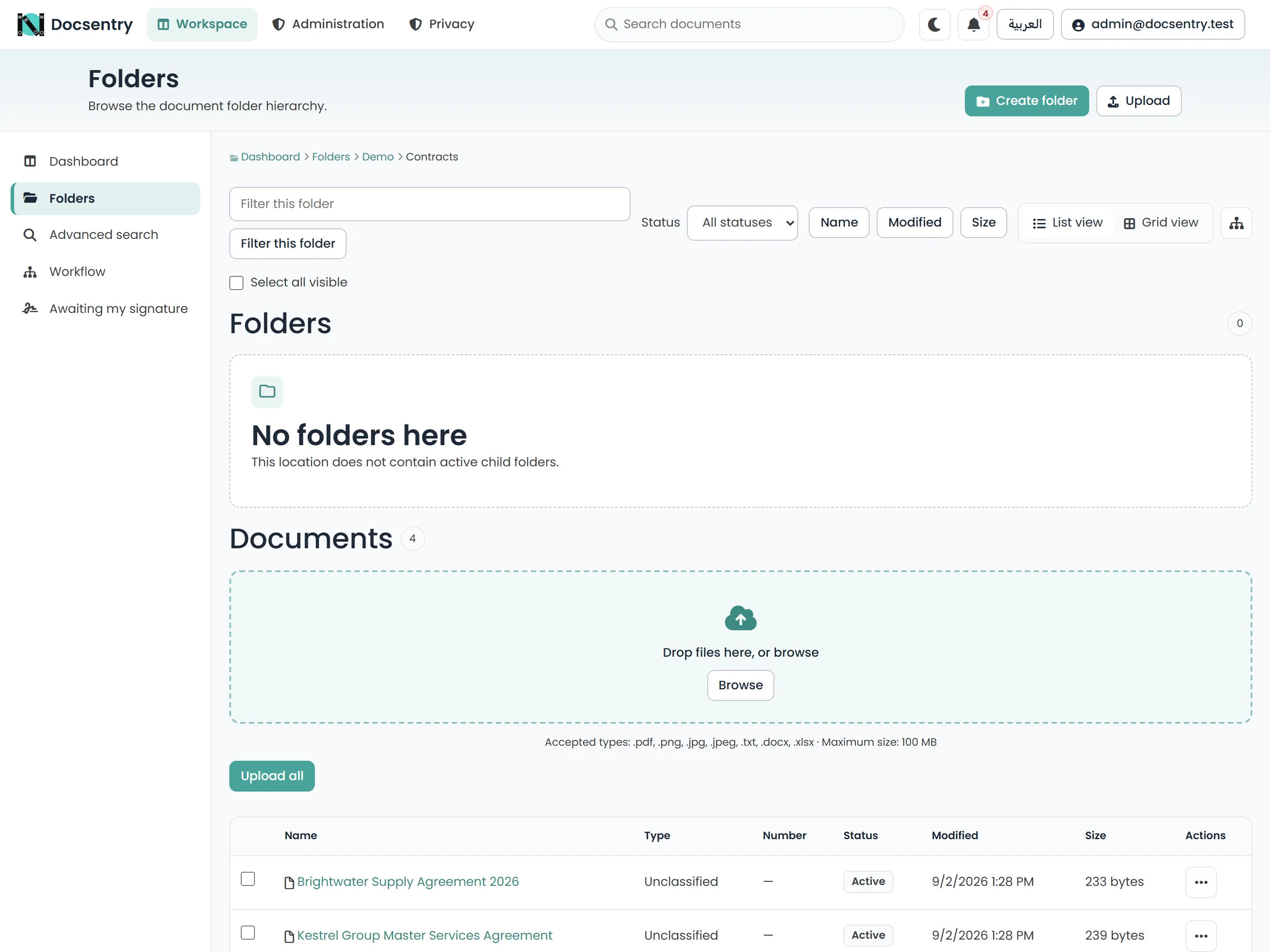
A folder with its drop area and document list. Accepted types and the size ceiling are stated under the drop area.
Large files and resumable uploads
Section titled “Large files and resumable uploads”Files above the chunk size are uploaded in pieces through an upload session. The client initiates a session, sends chunks, and completes it; the server assembles and verifies the result.
| Setting | Default | Meaning |
|---|---|---|
Uploads:ChunkSizeBytes |
4 MB | Size of each piece. |
Uploads:MaxFileSizeBytes |
100 MB | Hard ceiling on a single file. |
Uploads:SessionLifetime |
2 hours | How long an incomplete session survives. |
Because chunks are tracked server-side, an interrupted upload can be resumed rather than restarted. Sessions that are never completed are cleaned up by a background job, so an abandoned upload does not leak disk space indefinitely.
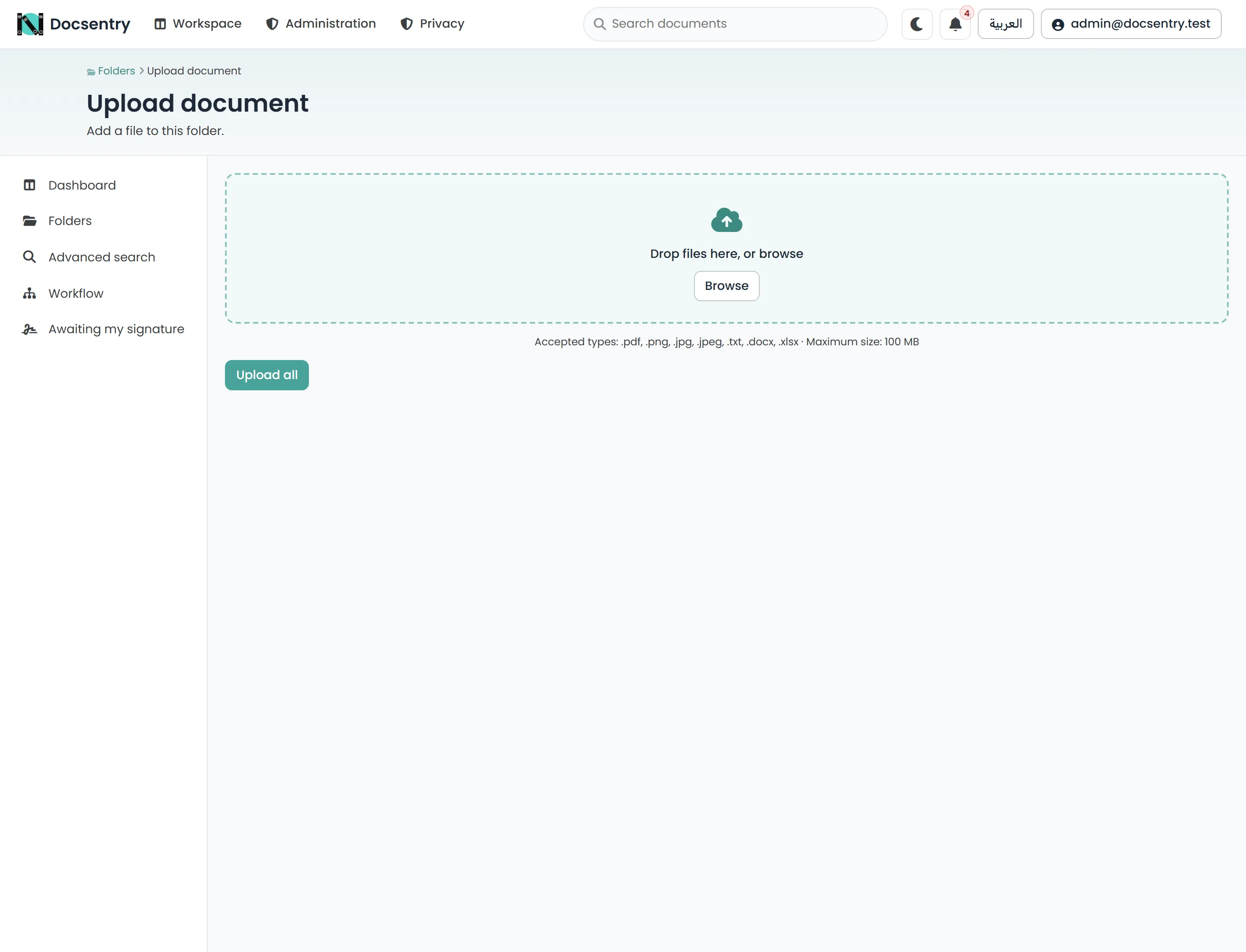
The upload page sets classification and metadata before the file lands.
What happens after you upload
Section titled “What happens after you upload”The upload request stores the file and returns. Everything else happens on background jobs, which is why a document can appear immediately but without a thumbnail for a short while.
1. Validation. The file must pass the upload allowlist. Extension, declared MIME type, and
sniffed content must all agree. A .pdf that is actually a ZIP is rejected, as is a real PDF
renamed to .docx. See Upload allowlist.
2. Storage. The file is encrypted and stored under a keyed content address. If identical content is already stored, the existing copy is referenced rather than duplicated.
3. Antivirus scan. The new version is queued for scanning. Until it is cleared, the document is listed but its content is not served - downloads are refused rather than allowed through. This is deliberate: scanning is fail-closed. See Antivirus.
4. Preview generation. A preview and a thumbnail are rendered for the version - directly for images, by rasterising the first page for PDFs, and by converting to PDF first for Office formats. If LibreOffice is not installed, Office files simply get no preview.
5. Text extraction. If the document has a text layer it is read directly; otherwise pages are rasterised and passed through optical character recognition. The extracted text feeds search and the document’s text panel. See OCR and text extraction.
6. Numbering, notifications, and workflow. If the folder has a default content type, the document is classified. If a numbering scheme applies, a number is allocated. People watching the folder are notified. If the folder is bound to an approver workflow, an instance starts.
Folder upload policies
Section titled “Folder upload policies”A folder can carry its own upload policy, layered over the global allowlist: which content types are permitted, and per-type size limits. A policy on a parent folder applies to its subtree unless a nearer folder overrides it.
This is how you allow large video files in one folder without raising the ceiling everywhere.
When an upload is rejected
Section titled “When an upload is rejected”| Message | Cause |
|---|---|
| Type not permitted | The content type is not on the global allowlist, or not on the folder’s policy. |
| Content does not match its declared type | Extension, MIME type, and sniffed content disagree. Usually a renamed file. |
| Too large | Above MaxFileSizeBytes, or above the folder policy’s limit for that type. |
| Not permitted | You lack Upload on the target folder. |
Related
Section titled “Related”- Previews - what gets rendered and what does not.
- OCR and text extraction - making content searchable.
- Bulk operations - moving and copying after the fact.