
Previews
Previews let people confirm they have the right document without downloading it - which matters
both for speed and because Preview is a lower permission than Download. Someone can be given
enough access to identify a document without being given its contents.
What gets previewed
Section titled “What gets previewed”| Kind | How it is rendered | Requires |
|---|---|---|
| Images (JPEG, PNG, GIF, WebP, TIFF, BMP) | Rendered directly. | Nothing extra. |
| First page rasterised. | Nothing extra. | |
| Office formats (Word, Excel, PowerPoint, and their open equivalents) | Converted to PDF, then rasterised. | LibreOffice. |
| Anything else | Not previewed. | - |
Which content types fall into each group is configurable through PreviewOptions:ImageContentTypes,
PdfContentType, and OfficeContentTypes.
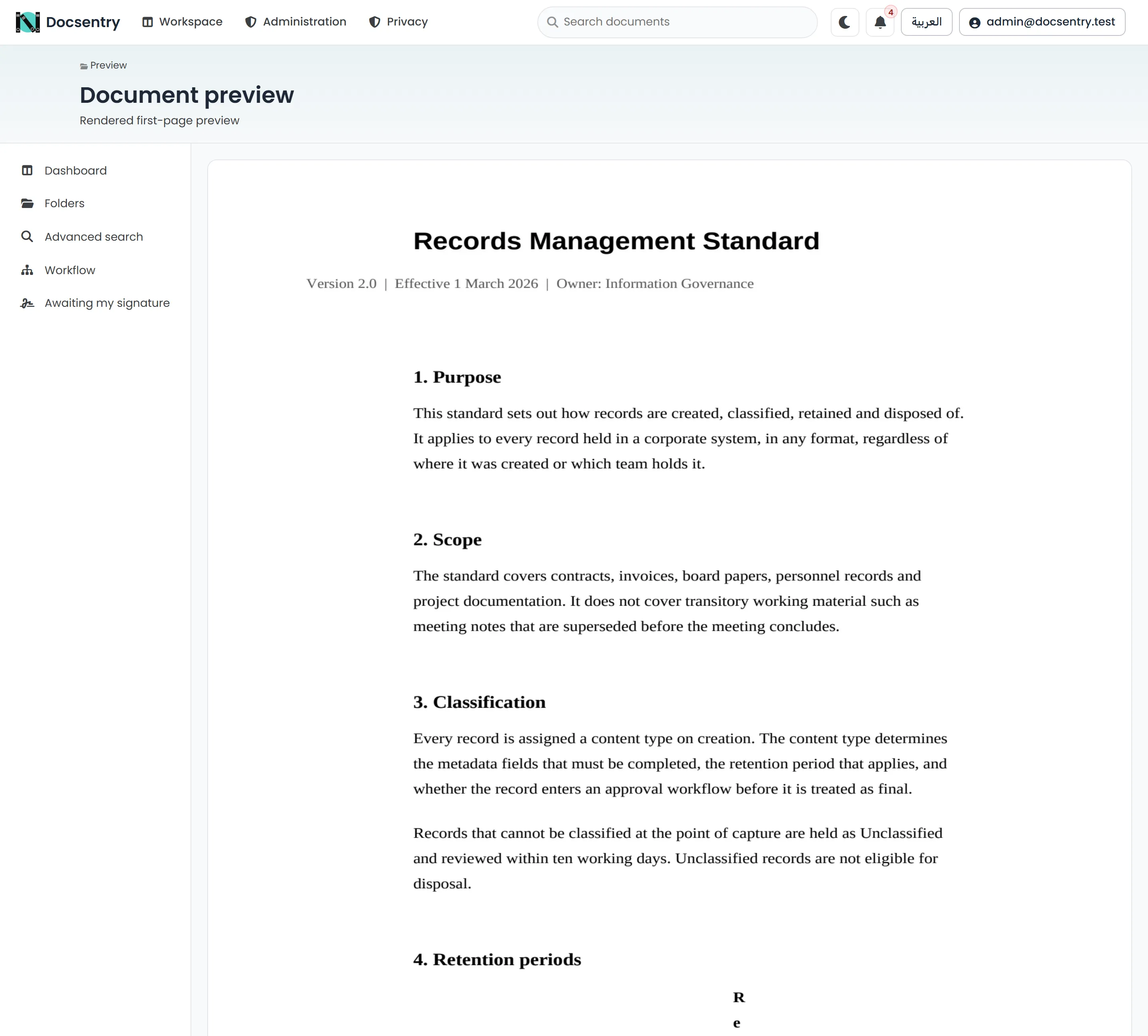
The preview view renders the first page. Opening it needs Preview, not Download.
Previews and thumbnails
Section titled “Previews and thumbnails”Two artefacts are produced per version:
- a preview, bounded by
PreviewOptions:MaxWidthandMaxHeight(1600x2000 by default) - a thumbnail, bounded by
ThumbnailMaxEdge(320 pixels by default)
Both are stored as WebP by default (ArtifactFormat), encrypted like the documents they come from.
Thumbnails are what you see on document cards in the explorer; the preview is what opens in the
preview view.
Renderers work on a short-lived decrypted copy in Storage:WorkingCopyPath, which is created
owner-only and swept automatically.
Artefacts are per version, not per document. Checking in a new version produces new artefacts; the old version keeps its own.
When previews appear
Section titled “When previews appear”Preview generation runs on a background job, not during the upload request. A document therefore appears in the folder immediately and gains its thumbnail shortly afterwards.
The job retries a failed render up to MaxAttempts times before giving up on that version, so a
transient failure - a converter that was briefly busy - resolves itself without intervention.
If a stored preview can no longer be read, Docsentry treats it as missing and regenerates it rather than showing a broken image.
Watermarks
Section titled “Watermarks”Where governance settings require it, a watermark is composited onto the preview. This applies to the rendered preview, not to the stored original - downloading the document yields the file as uploaded.
Watermark rules are part of the governance configuration and are managed through the governance API. See HTTP API.
Caching
Section titled “Caching”Previews and thumbnails are immutable for a given version, so they are served with cache headers that let the browser reuse them. Thumbnails in particular are cached, which is what keeps a folder of many documents from re-fetching every image on each visit.
The preview view itself is served without caching, because what it displays depends on the caller’s permissions.
Previews, thumbnails and downloads are served with a sandboxing content policy, so a malicious file cannot run script in the application. With the optional content host configured, they are also served from a separate, cookieless origin. See Security hardening.
Office conversion
Section titled “Office conversion”Office previews go through soffice. Two settings matter:
| Setting | Purpose |
|---|---|
PreviewOptions:SofficePath |
Absolute path to the executable. Leave empty to auto-discover it on the current platform. |
PreviewOptions:SofficeTimeout |
Bound on a single conversion, one minute by default. |
The timeout exists because a malformed document can make the converter hang. When it trips, that version’s preview fails and is retried; it does not block other work.
If Office previews stopped working after a host change, the executable path is the first thing to check.
Permissions
Section titled “Permissions”Viewing a preview requires Preview on the document. Downloading the original requires
Download. The split is intentional and is a genuinely useful grant to hand out - see
Permission model.
Content that has not cleared antivirus scanning is not served in any form, preview included. See Antivirus.
Related
Section titled “Related”- Uploading - the full post-upload pipeline.
- OCR and text extraction - the other thing that happens to a new version.
- Background jobs - cadence and batch sizes.
- Troubleshooting - when a preview never appears.